Blog
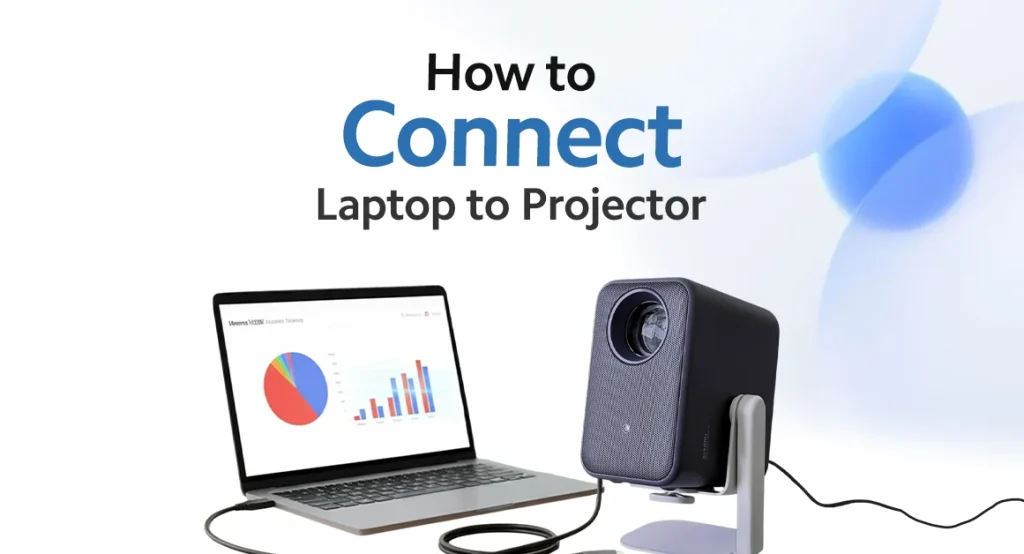
If you are juggling to connect your laptop to a projector, then this guide is for you. We understand the anxiety before delivering a major presentation. In such a condition, you would never want to invest your energy in figuring out how to connect laptop to projector.
Sharing your laptop screen with the projector in front of people is not a daunting task. From newbie to tech-savvy follow these simple steps to do so. Deliver your presentation with full confidence. Explore how to connect projector in easy way.
Connect Laptop to Projector via Cable
Let’s discuss how to identify the cable used to make the connection. This is the most basic information that Mishop.pk is sharing to make the guide easier for the user.
- First, identify the type of ports your laptop and projector have. After that, arrange the type of cable required to make the connection. The types of cables used here are HDMI, VGA, or DVI.
- If you are still unsure which type of cable is required. Observe the shape of the ports of the laptop and projector. Most of the time, it is labelled on the device.
- If your system is making it difficult for you to understand this. You can get it checked by any expert before your presentation. You will receive the accurate suggestion.
- Moreover, if there’s no option for cables. You can have the adapter of HDMI or VGA to establish the connection.
Steps for Making a Connection
- Make sure that the laptop and projector are both turned off
- Connect the cable that supports your laptop port to the other end of the projector.
- Plug your projector into the socket and turn it on
- Then turn on your laptop
- If your presentation has some audio, you can connect the audio port of the laptop to the projector.
- Hold the function key and press one of the keys, such as F4, F5, F7, or F8, to toggle the display mode.
- In PC mode, you will choose the private screen, with no projection to the big screen.
- Choose the duplicate option if you want to mirror the screen
Connect Laptop to Projector Via Bluetooth
There is a wireless option for connecting the laptop to the projector. With the Bluetooth connectivity option, you can establish a strong connection. Let us guide you to do so.
- Power on the laptop and the projector.
- Activate the pairing mode of the laptop by going into the settings option.
- There is an option, ‘connecting PC to Bluetooth.’
- Configure the display setting by pressing Win plus P key
- A screen-sharing option will pop up.
- Choose the kind of display you want.
Xiaomi Projectors are useful devices in the high-tech world. It is easy to learn the settings of this device. The device is equipped with advanced features, making configuration easy and readily available to establish a connection. Xiaomi Smart Projectors price in Pakistan is under the bracket of 70K, which is comparatively much less than other brands. Moreover, at mishop.pk you are getting this device at extremely affordable rates, with after-sales support.
Final Words
When you connect your laptop to a projector, it opens up endless opportunities. From work to entertainment, every task becomes feasible. Hence, connecting laptops to a projector is a task, but through HDMI, VGA, USB, or wireless connections, you can set up the connection. Configure the display settings to enhance the viewing experience in boardrooms, classrooms, and home theatres. Hence, Xiaomi Smart Projectors are available to make presentations easier for you. Buy them from mishop.pk to get the best prices. Moreover, explore other ranges such as CCTV cameras and Xiaomi Monitors.
FAQs
Q: What should I do if the projector says “No Signal”?
A: Ensure the cable is firmly plugged in and that you have selected the correct Input/Source on the projector settings.
Q: How do I get sound to play through the projector instead of my laptop?
A: Click the volume icon on your laptop taskbar and change the “Playback Device” to the name of the projector or HDMI output.
Q: Why is my laptop screen showing on the projector but looking blurry?
A: You need to adjust the laptop’s display resolution in Settings to match the projector’s resolution.